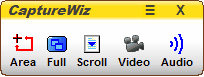
Start captures by clicking one of the capture bar buttons.
The capture bar's retract and extend feature
Drag the capture bar to any screen edge and it automatically retracts into a small tab. Roll your mouse over the tab and the capture bar extends back out.

Customizing the capture bar
To customize the capture bar, on the capture bar, click Menu (≡) / Settings / Options / Capture Bar.

Customizing the button functions
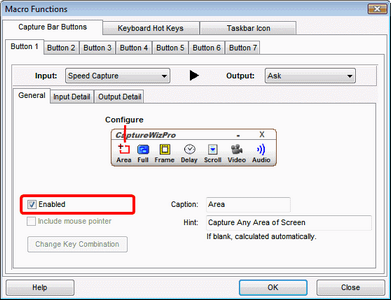
To customize a button’s function, right-click the button. Add or remove buttons by checking or un-checking Enabled.
Opening the capture bar
After turning the capture bar off, reopen it by clicking the taskbar corner icon, then click Capture Bar.
