Cable fix
Perhaps the easiest way to record the audio through your speakers is to connect a cable from the computer's speaker jack to its input jack.
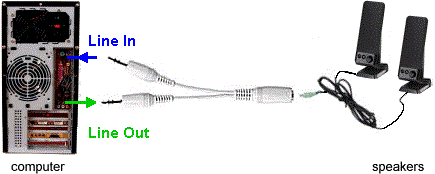
1 Insert one male 1/8" stereo plug into the computer's blue, Line-In jack, at the back.
2 Insert one male 1/8" stereo plug into the computer's green, Line-Out jack.
3 Plug your computer speakers into the cable's female 1/8" stereo jack.
4 On the capture bar, click Menu (≡) / Settings / Options / Audio.
5 For Channel, select Line-In (or Microphone, if that's where you plugged in the cable.)
A customer who goes by the name DC reports that this cable from Amazon works perfectly:
YCS Basics 3.5mm Splitter Cable 1 Female / 2 Male (Not for mixing or combining audio sources)
https://www.amazon.com/gp/product/B00EA8QUTS/ref=ask_ql_qh_dp_hza
Pecky's alternative
Here's a simpler alternative suggested by Pecky A. Connect the speaker's earphone jack to the computer's Line-In jack. The downside is you can't hear while recording. Tell CaptureWiz to record the Microphone at Menu (≡) / Settings / Options / Audio.
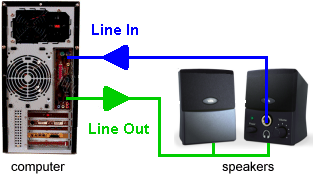
Laptops
If your computer lacks a Line-In jack, you can use an attenuating patch cable, for example Radio Shack 42-2152 ($5), between its Microphone and Headphone jacks. You just won't hear anything while recording. Tell CaptureWiz to record the Microphone at Menu (≡) / Settings / Options / Audio.

Virtual audio cable
We've also read that a "Virtual audio cable" works, but we hear it's complicated.
Record through microphone
One last alternative is to record through a microphone placed in front of the computer's speakers.