CaptureWiz will record the audio going to the computer's speakers if the computer's audio driver provides this capability.
We just need to select which channel to record. Audio drivers give this channel various names, including:
| • | StereoMix |
| • | What-U-Hear |
| • | Rec-Playback |
| • | Sum Balance |
| • | Wave Out Mix |
| • | Record Master |
| • | Wave/MIDI/CC |
| • | Mixed Output |
The problem is, this channel is often hidden. We don't know why. Here's how to force Windows to show the channel, if available, so we can select it.
1 Press the Windows key, then type Control Panel.
2 On the Control Panel, click Hardware and Sound.
3 In the Sound section, click Manage audio devices.
4 On the Sound window, click the Recording tab.
5 In the blank area under the list of devices, right-click.
6 On the context menu, check mark both Show Disabled Devices and Show Disconnected Devices.
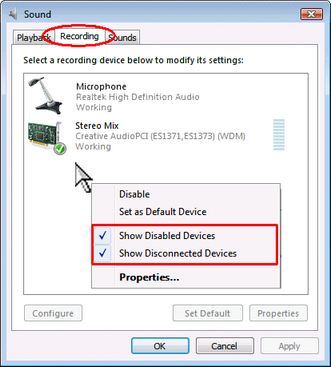
Note, if the channel you want still doesn't appear, skip to the next option, New Driver.
7 Click the channel you want to record.
8 Click the Set Default button.
9 On the capture bar, click Menu (≡) / Settings / Options / Audio / Setup Wizard and select this channel.
Go to next option - New driver
Skip to easiest fix - Patch cable